Human-in-the-Loop (HIL)
The Human-in-the-Loop (HIL) feature allows an agent to pause execution and request input or approval from designated users before continuing a workflow. It enables organizations to add human oversight to sensitive or high-impact operations, ensuring that important decisions are reviewed before execution.
Human-in-the-Loop works together with Governance. When a Governance Policy Rule returns the Ask Human decision, the configured HIL process is triggered automatically.
Why Use Human-in-the-Loop?
Human-in-the-Loop helps you:
- Add human oversight to agent workflows.
- Prevent unauthorized or high-risk actions.
- Require approval for sensitive operations.
- Collect feedback or additional information from users.
- Improve compliance with business policies.
- Record approval decisions for auditing and accountability.
Creating a Human-in-the-Loop Configuration
- Open the required agent.
- Navigate to Governance.
- Open the Human In Loop tab.
- Click Create.
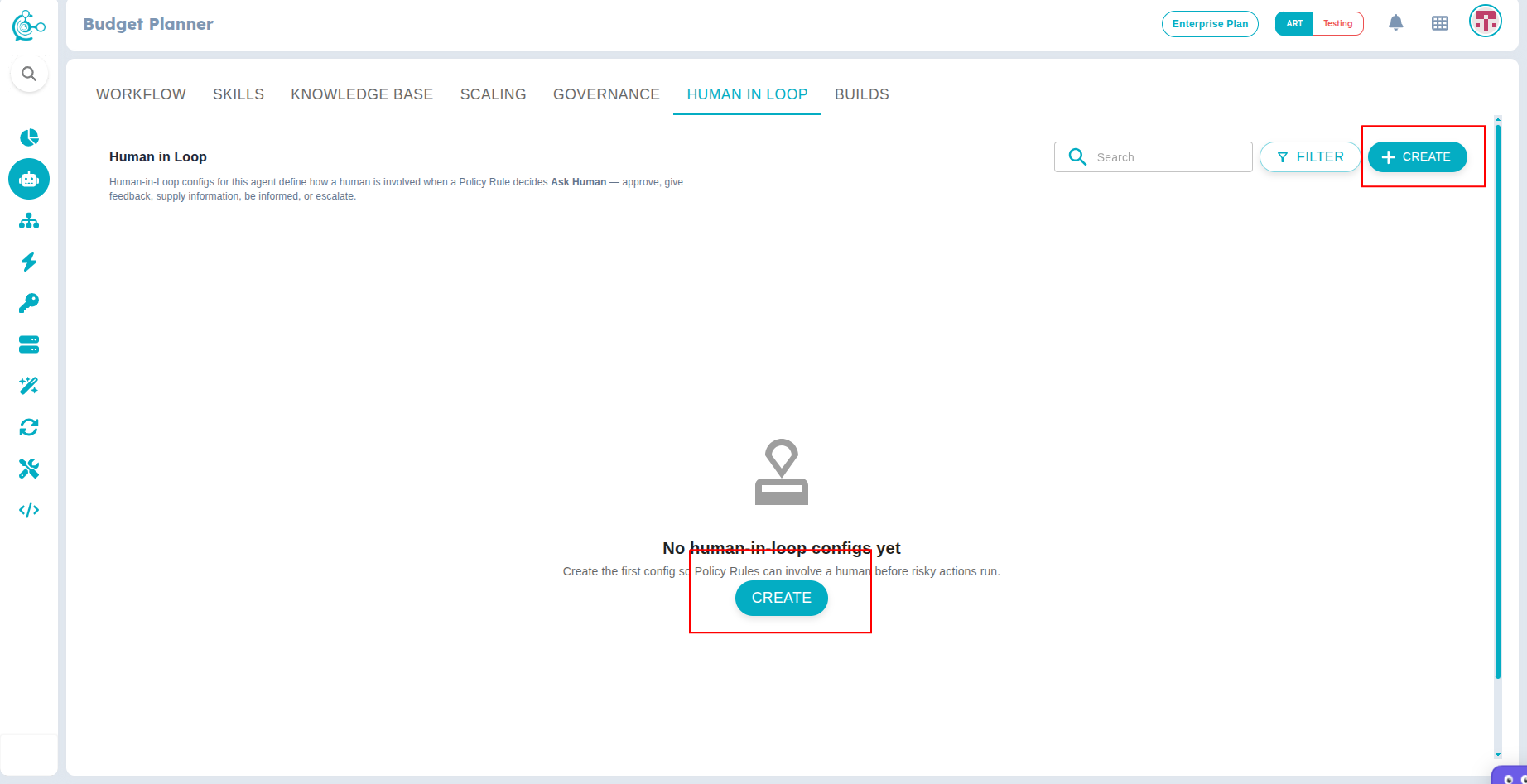
Figure 1: Human In Loop
- Configure the following settings:
Interaction
Choose how the human participates in the workflow.
| Interaction Type | Description |
|---|---|
| Approval | A user must approve or reject the request before the workflow continues. |
| Feedback | Collect comments or guidance from a user. |
| Information | Request additional information required by the workflow. |
| Inform / Update | Notify users without pausing the workflow. |
| Escalate | Route the request to another approver or approval level. |
Basics
Provide the basic information for the Human-in-the-Loop configuration.
- Title – A name used to identify the configuration.
- Status – Enable or disable the configuration.
- Description – A brief explanation of the configuration and its purpose.
Participants
Define who can review or respond to the request.
| Participant Type | Description |
|---|---|
| User | Assign one or more specific users. |
| Role | Assign users with a selected role. |
| Group | Assign members of a selected group. |
| Anyone | Allow any authorized user to respond. |
Configure the following participant settings:
- Participants – Select the users, roles, or groups involved.
- Approval Mode – Determines how many responses are required before the workflow continues.
| Approval Mode | Description |
|---|---|
| Any One | A single participant's approval is sufficient. |
| All | Every assigned participant must approve. |
| Majority | More than half of the participants must approve. |
| Quorum | A specified number of participants must approve. |
Timeout
Configure how long the workflow waits for a response and what happens if no response is received.
| Setting | Description |
|---|---|
| Timeout (Minutes) | Maximum time to wait for a response. |
| On Timeout | Action performed when the timeout expires. |
Available timeout actions:
| Action | Description |
|---|---|
| Block | Rejects the request automatically. |
| Escalate | Routes the request to another approval process. |
| Auto Approve | Automatically approves the request after the timeout period. |
Approver Actions
Configure additional approval requirements.
- Require Reason – Requires participants to provide a justification when approving or rejecting the request. The reason is stored in the audit history.
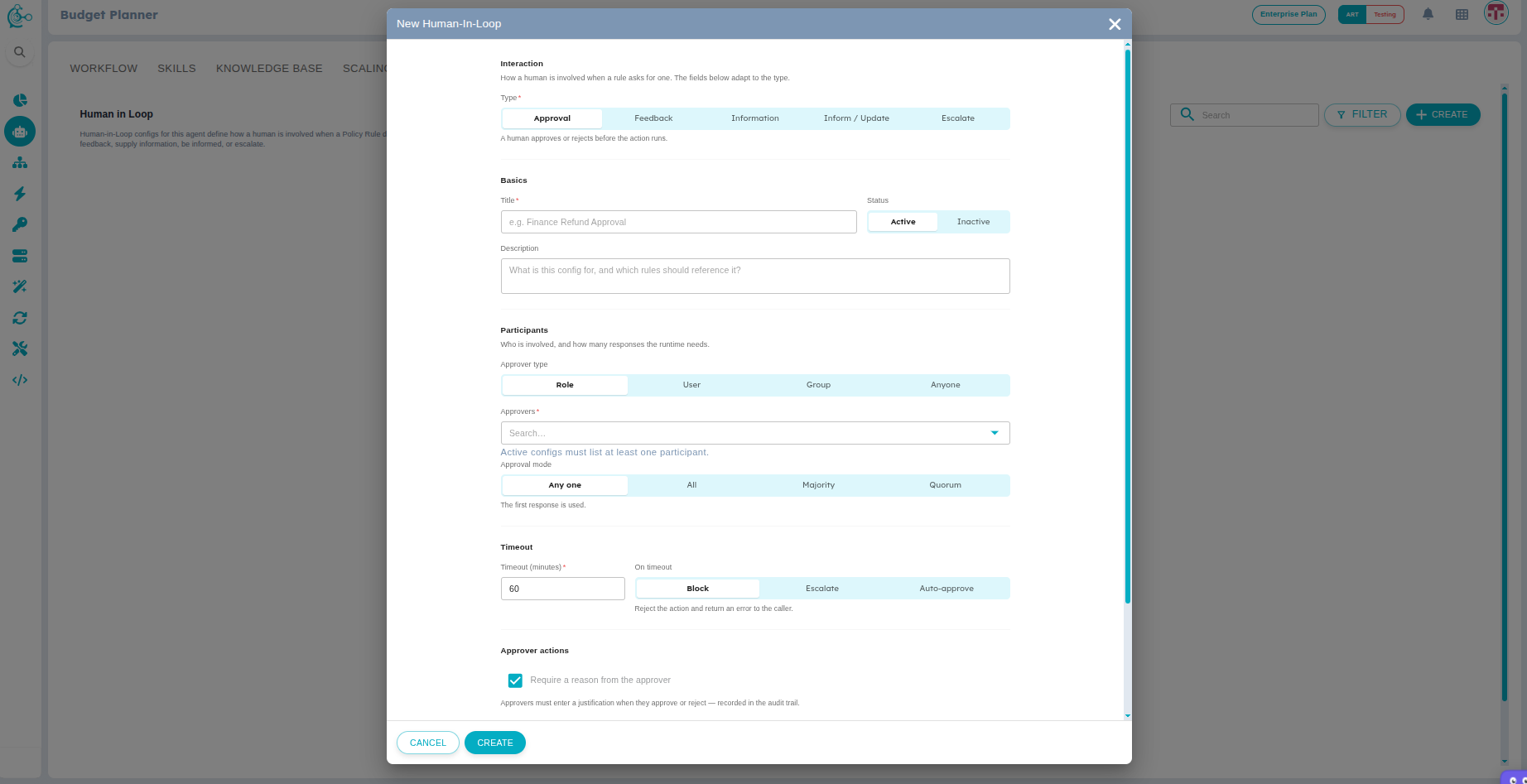
Figure 2: Human-in-the-Loop Configuration
- Click Save to create the Human-in-the-Loop configuration.
Runtime Workflow
When a workflow requires human intervention, Human-in-the-Loop follows this process:
- The agent performs an action.
- Governance evaluates the configured Policy Rules.
- A Policy Rule returns the Ask Human decision.
- The associated Human-in-the-Loop configuration is triggered.
- The configured participants receive notifications.
- The workflow pauses until the required response is received.
- If the request is approved, the workflow resumes.
- If the request is rejected or times out, the configured timeout action is executed.