Builds
The Builds feature allows you to create versioned snapshots of your agent workflow. Each build captures the current workflow configuration, including all connected nodes, settings, and relationships, and packages it into a deployable version.
Every build is assigned a unique version number, allowing you to track changes, manage multiple versions, and safely deploy updated agent workflows.
Builds help you:
- Create versioned snapshots of your agent workflow.
- Track changes made over time.
- Validate workflow configurations before deployment.
- Maintain a history of workflow versions.
- Publish stable versions of an agent.
- Restore or compare previous versions when required.
Creating a Build
You can create a build in either of the following ways:
- From the Workflow page by clicking Build after completing your workflow configuration.
- From the Builds tab by clicking New Build.
To create a build:
- Open the required agent.
- Navigate to the Workflow page or the Builds tab.
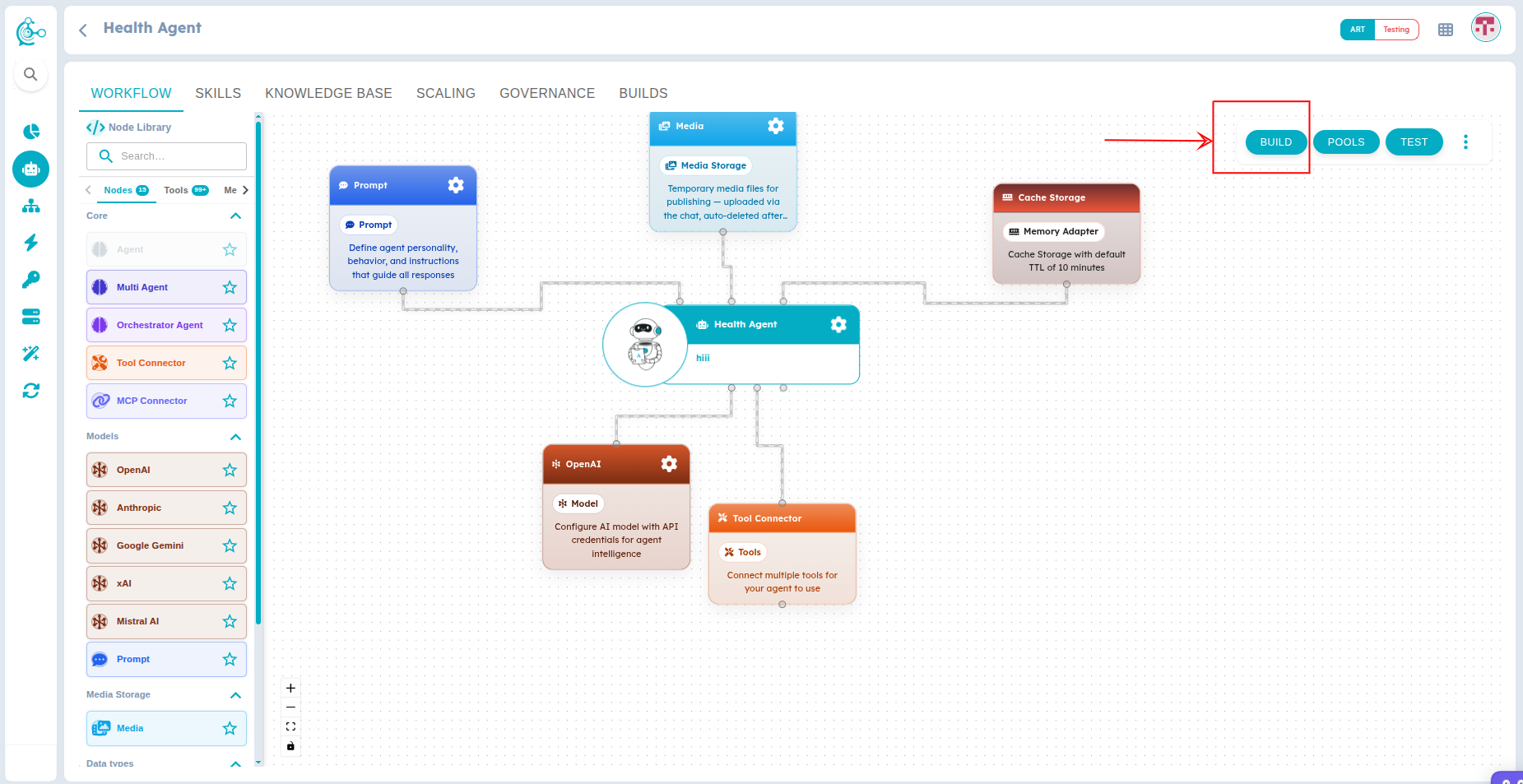
Figure 1: Click on build
- Click Build (from the Workflow page) or New Build (from the Builds tab).
- Enter the following information:
- Build Name
- Description (Optional)
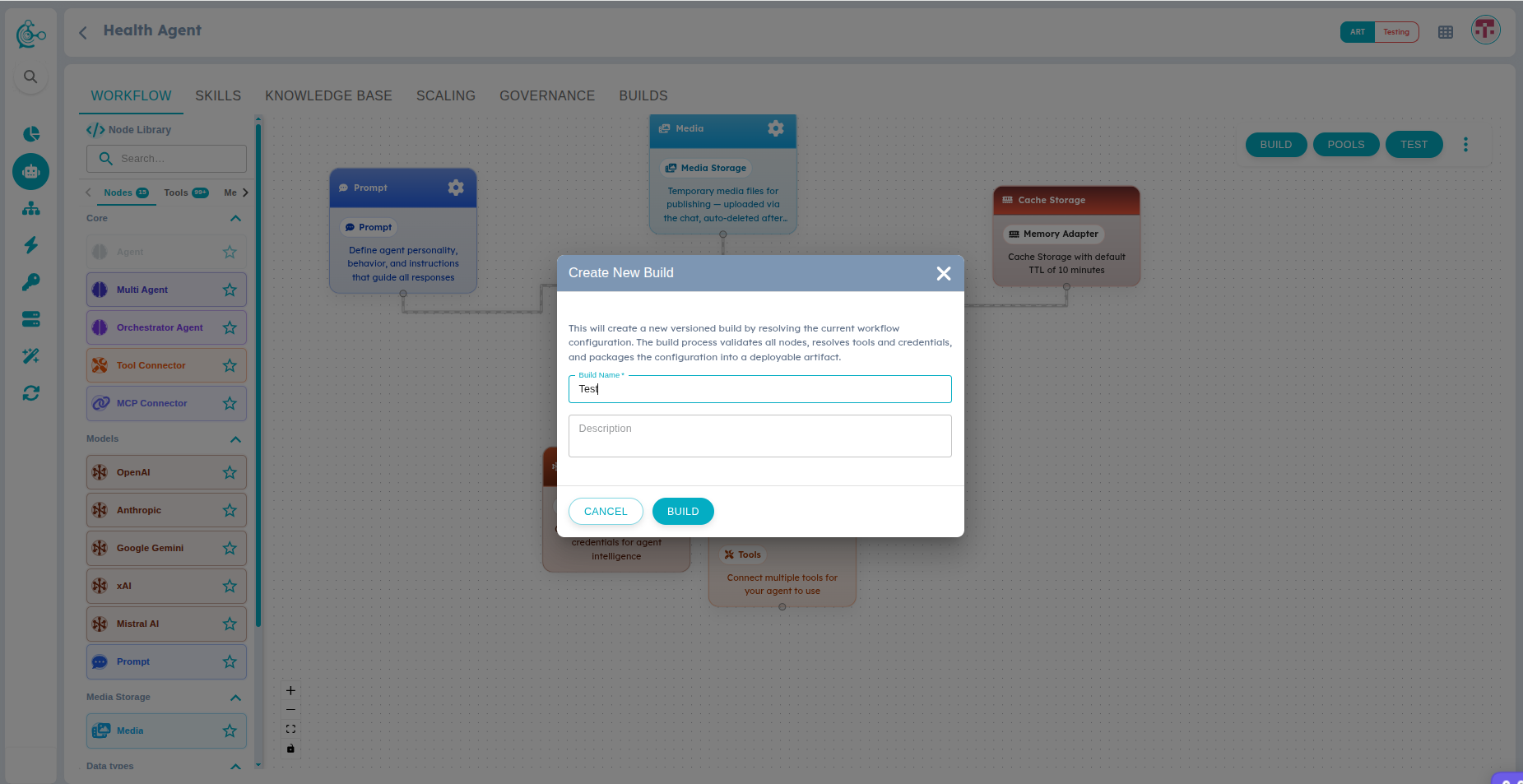
Figure 2: Create Build
- Click Build.
During the build process, Agent Lab validates the current workflow configuration and generates a new version of the agent.
Creating a build from either the Workflow page or the Builds tab produces the same result. Both options create a new version of the current workflow configuration.
Publishing a Build
Once the build has been successfully created, click Publish to make it available for deployment.
When you publish a build:
- The selected build becomes the active version of the agent.
- The previously published build is automatically marked as Deprecated.
- If an Agent Pool does not already exist, one is automatically created for the published build.
- The Agent Pool is displayed on the Scaling page, where you can manage deployment and runtime settings.
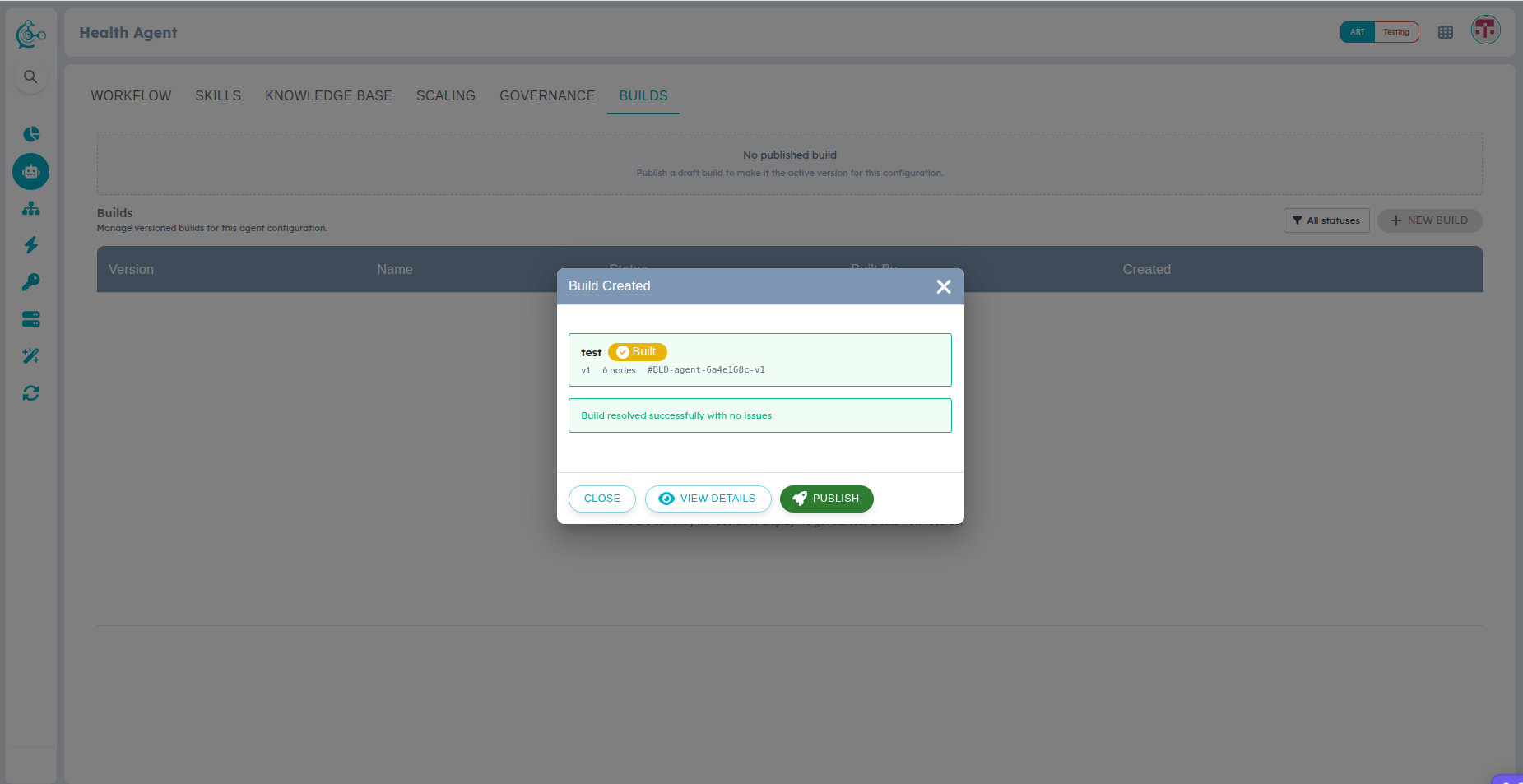
Figure 3: Publish Build
After publishing, navigate to the Scaling page to view and manage the associated Agent Pool. From there, you can deploy, monitor, or update the pool configuration as needed.
Build Versions
Every successful build creates a new version of the agent. Each version represents a snapshot of the workflow configuration at the time the build was created.
Version numbers are assigned automatically and increment sequentially with every new build.
For example:
| Build | Version |
|---|---|
| First Build | v1 |
| Second Build | v2 |
| Third Build | v3 |
| Fourth Build | v4 |
| ... | ... |
| Nth Build | vN |
There is no limit to the number of builds you can create. Each new build generates a unique version, allowing you to maintain a complete history of your agent's workflow.
Build Status
Each build displays its current status.
| Status | Description |
|---|---|
| Draft | CThe build has been created but is not yet completed. |
| Built | MThe build completed successfully and is ready to be published. |
| Published | The build is currently active and available for deployment. |
| Deprecated | The build has been replaced by a newer published version. |
| Failed | The build could not be completed because of validation or configuration errors. |
Managing Builds
The Builds page is your central hub for managing all builds created for the selected agent.
Building & Versioning
- Create new builds to capture workflow changes
- View build versions to access your complete build history
Monitoring & Discovery
- Monitor build status in real-time
- Filter builds by status to quickly find what you need
Deployment & Cleanup
- Publish completed builds to activate them for deployment
- Retry failed builds without starting from scratch
- Delete unpublished builds to keep your build list organized
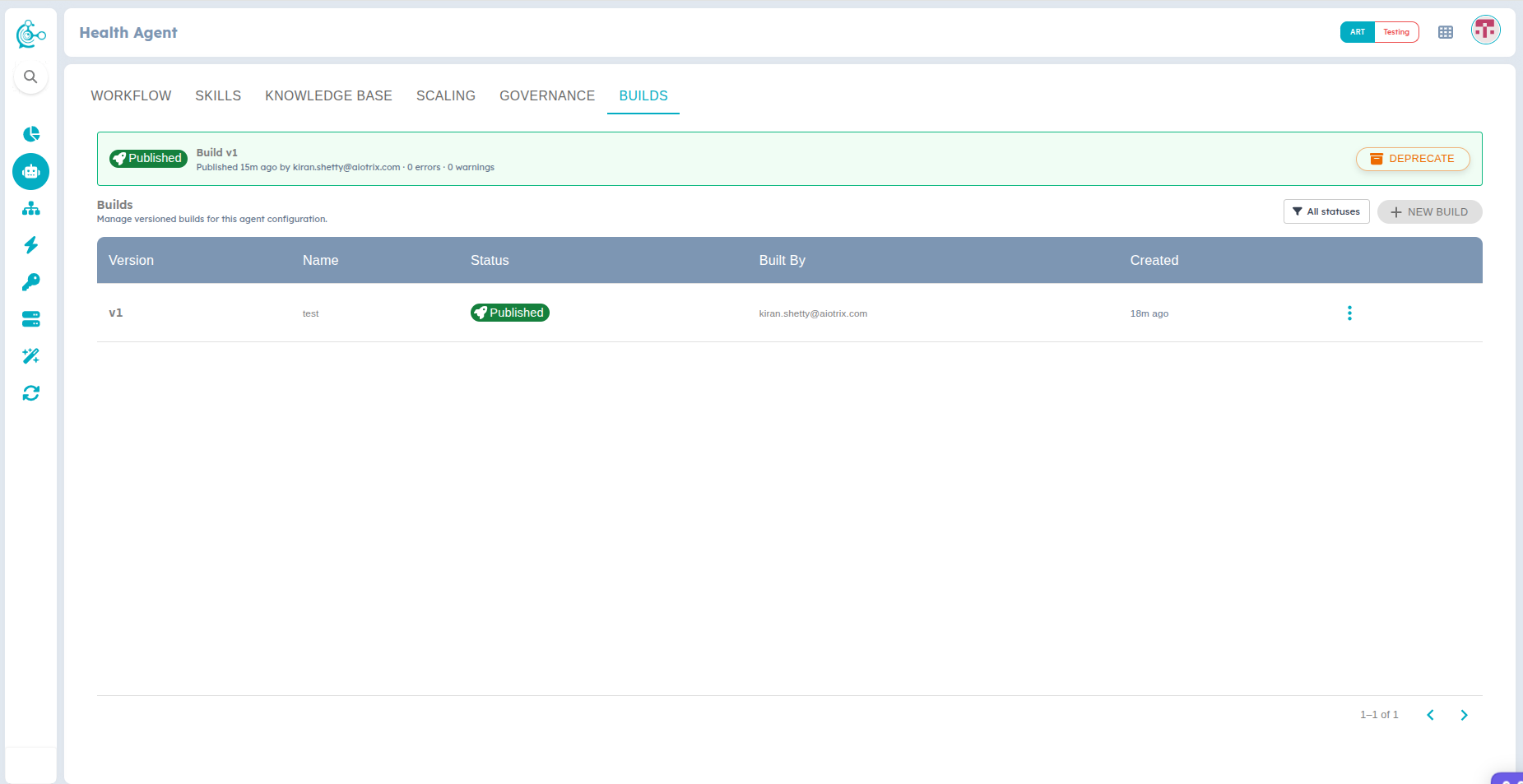
Figure 4: Builds Page
Viewing Build Details
Selecting a build displays additional information about that version.
Identification & History
- Build Name: User-defined identifier for the build
- Build Version: Unique version number (auto-assigned)
- Created Date and Time: When the build was created
Configuration Details
- Build Status: Current lifecycle state
- Build Description: Optional notes or change summary
Quality Assurance
- Validation Messages: Build validation results
- Errors and Warnings: Issues requiring resolution
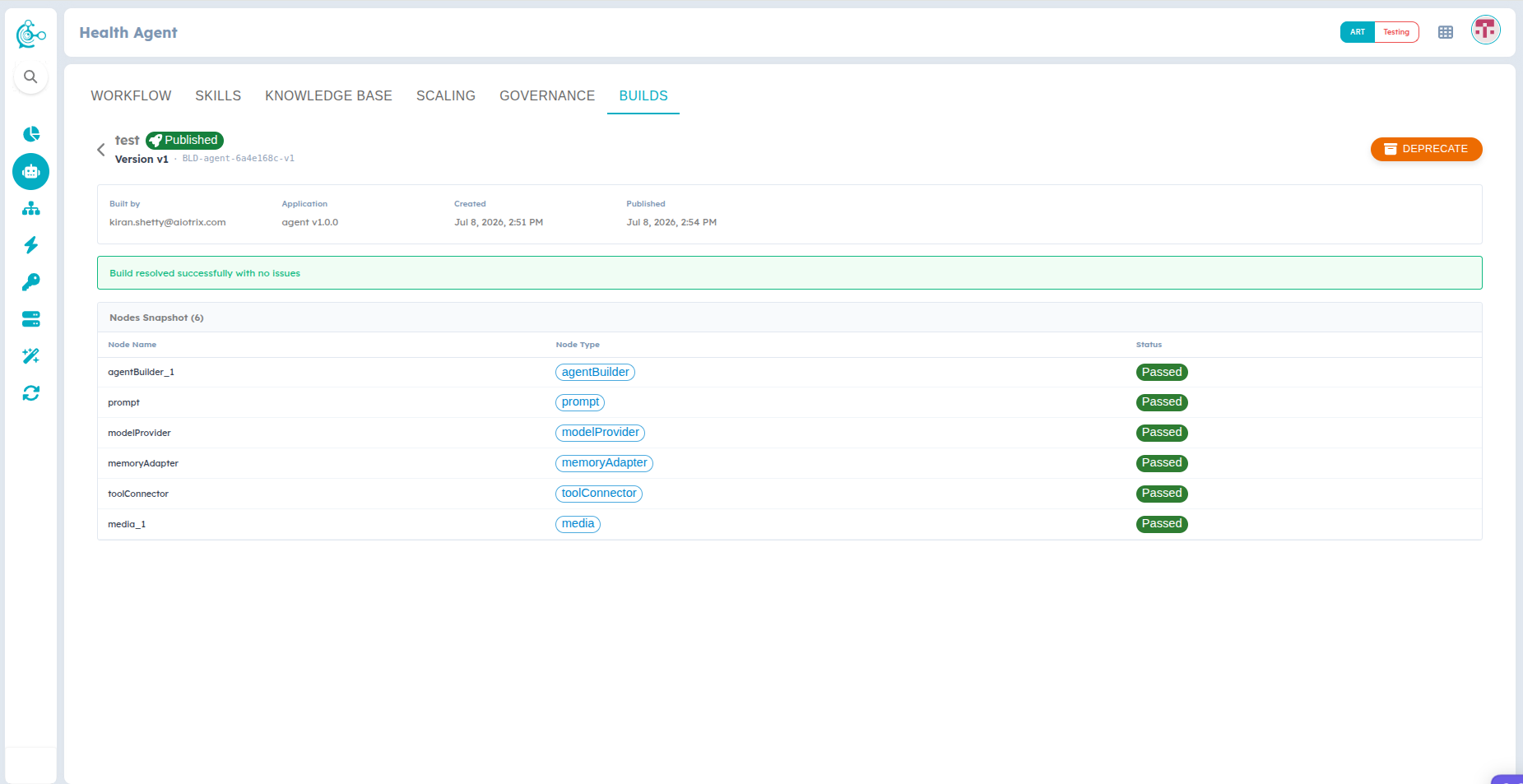
Figure 5: Build Details
Review the build details before publishing to ensure that the workflow has been built successfully.
Create a new build whenever you make changes to your workflow, including:
- Adding or removing nodes.
- Updating prompts.
- Changing model configurations.
- Modifying memory settings.
- Adding or updating Tool Connectors.
- Configuring Data Type nodes.
- Updating Media nodes.
- Modifying Knowledge Base settings.
- Adding or updating Skills.
- Changing workflow connections.
These changes are included in the agent only after a new build is created.
Changes made only to Scaling settings, such as Pool Size, Idle Timeout, or Maximum Lifetime, do not require a new build because they affect runtime deployment rather than the workflow configuration.
Build vs Publish
Building and publishing are separate operations.
| Build | Publish |
|---|---|
| Creates a versioned snapshot of the current workflow. | Makes the selected build the active version. |
| Validates the workflow configuration. | Activates the build for deployment. |
| Generates a new version number. | Replaces the previously published version. |
| Does not affect runtime deployment. | Makes the published version available through the Scaling page. |