Rate Limits
A Realtime Tech (ART) applies usage limits to keep the realtime platform stable, predictable, and reliable for every workspace. These limits define how much realtime capacity a workspace can use across connections, messages, presence, and Shared Object synchronization.
Understanding these limits helps you design your application efficiently, avoid unexpected delivery issues, and choose the right plan for your scale.
Plan Limits
ART offers four plans for each application i.e Agent Lab and Live Connect:
- Sandbox: Intended for development, testing, and small experiments.
- Starter: Suitable for production applications with moderate realtime usage.
- Business: Suitable for growing production applications with higher concurrency and message volume.
- Professional: Suitable for high-scale production applications with large realtime workloads.
Limits are applied at the workspace level unless a section explicitly states otherwise.
Connection Limits
Connection limits apply to active realtime sessions and total connection duration across your workspace.
Each active WebSocket session is counted as one independent connection. If one user connects from multiple browser tabs, devices, or applications, each active session is counted separately.
Connection-minute usage is aggregated across all users, channels, and sessions within the workspace. It is not calculated separately by channel name or username.
Why Connection Limits Exist
Connection limits help ART:
- Prevent excessive WebSocket occupancy
- Maintain stable routing performance
- Control infrastructure memory usage
- Keep realtime delivery reliable for all active workspaces
Connection-minute limits exist because realtime infrastructure resources remain occupied for the full duration of an active WebSocket connection, even when no messages are being published.
Connection limits for Live Connect
| Limit | Sandbox | Starter | Business | Professional |
|---|---|---|---|---|
| Concurrent connections | 50 | 10,000 | 50,000 | 100,000 |
| Connection minutes per month | 50,000 | 350M (350,000,000) | 2B (2,000,000,000) | 4B (4,000,000,000) |
Concurrent connections
Maximum number of WebSocket connections that can remain active at the same time. If one user has multiple active connections, each connection is counted independently.
Connection minutes per month
Total number of minutes WebSocket connections remain active across the workspace during the monthly usage window. Usage is aggregated across all users and channels, and is independent of channel name or username.
Message Limits
Message limits apply to message rate, total message usage, and payload size across the workspace.
A message is counted when it is successfully pushed into the ART WebSocket pipeline. It is not counted based on delivery acknowledgement completion.
Messages that enter the pipeline but later fail delivery are still counted toward usage.
Why Message Limits Exist
Message limits help ART:
- Maintain stable WebSocket throughput
- Protect routing infrastructure from sudden traffic spikes
- Avoid channel congestion
- Maintain predictable delivery latency
- Prevent high-frequency workloads from affecting other active channels
| Limit | Sandbox | Starter | Business | Professional |
|---|---|---|---|---|
| Messages per second | 500 | 5,000 | 50,000 | 1,000,000 |
| Messages per day | 10M (10,000,000) | 25M (25,000,000) | 50M (50,000,000) | 1B (1,000,000,000) |
| Message size limit | 64 KiB | 64 KiB | 128 KiB | 256 KiB |
Messages per second
Maximum number of messages that can be pushed through WebSocket per second. If this limit is exceeded, excess messages may be dropped and not delivered.
Messages per day
Total number of messages pushed through WebSocket within a 24-hour window. In a targeted channel, one message intended for one receiver counts as one message. In group or broadcast channels, usage is calculated based on the number of intended recipients.
Message size limit
Maximum allowed size of a single message payload. Messages exceeding the configured size limit are discarded and are not delivered.
Message Counting Examples
These examples show how message usage is calculated:
- If a message is sent to one receiver in a targeted channel, it counts as 1 message.
- If a message is broadcast to 1,000 intended recipients, it counts as 1,000 messages.
- If a message enters the ART WebSocket pipeline but later fails delivery, it still counts toward usage.
- If a message is rejected before entering the ART WebSocket pipeline, it does not count as delivered usage.
Presence Limits
Presence limits apply to the number of users that can simultaneously remain present inside a single channel.
This limit is enforced per channel. It does not reduce the overall workspace connection limit.
Why Presence Limits Exist
Presence tracking generates internal realtime events whenever clients join, leave, or update presence state inside a channel.
Presence traffic grows faster than standard publish traffic as channel occupancy increases. Higher occupancy channels generate:
- More synchronization events
- More fanout activity
- Higher routing overhead
- More realtime state updates
Presence limits help maintain stable synchronization performance across large occupancy channels.
For high-occupancy broadcast use cases where presence tracking is not required, use Broadcast Channels instead of Presence Channels.
| Limit | Sandbox | Starter | Business | Professional |
|---|---|---|---|---|
| Presence members per channel | 20 | 100 | 500 | 1,000 |
Maximum number of users that can simultaneously remain present inside a single channel. Additional users cannot join the presence set once the limit is reached. Existing members remain unaffected.
Users can create usage alerts by setting a preferred usage threshold and adding email addresses to receive notifications when the specified usage limit is reached.
Steps to Create a Usage Alert
- Click on the Personal Profile icon.
- Select Usage.
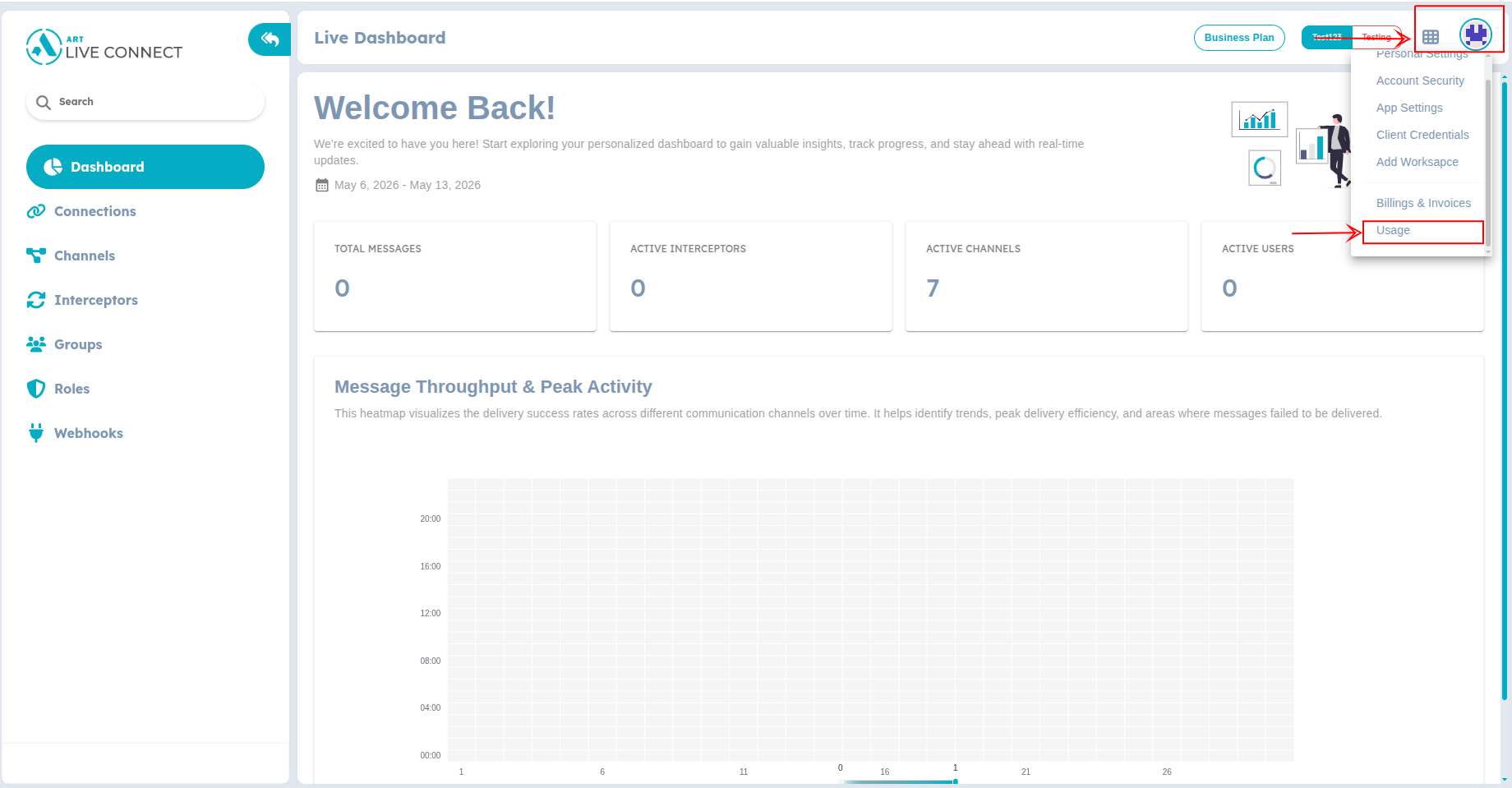
Figure 1: Go to Usage page
- You will be redirected to the Usage page. Open the Preferences tab.
- Click on Create Alert.
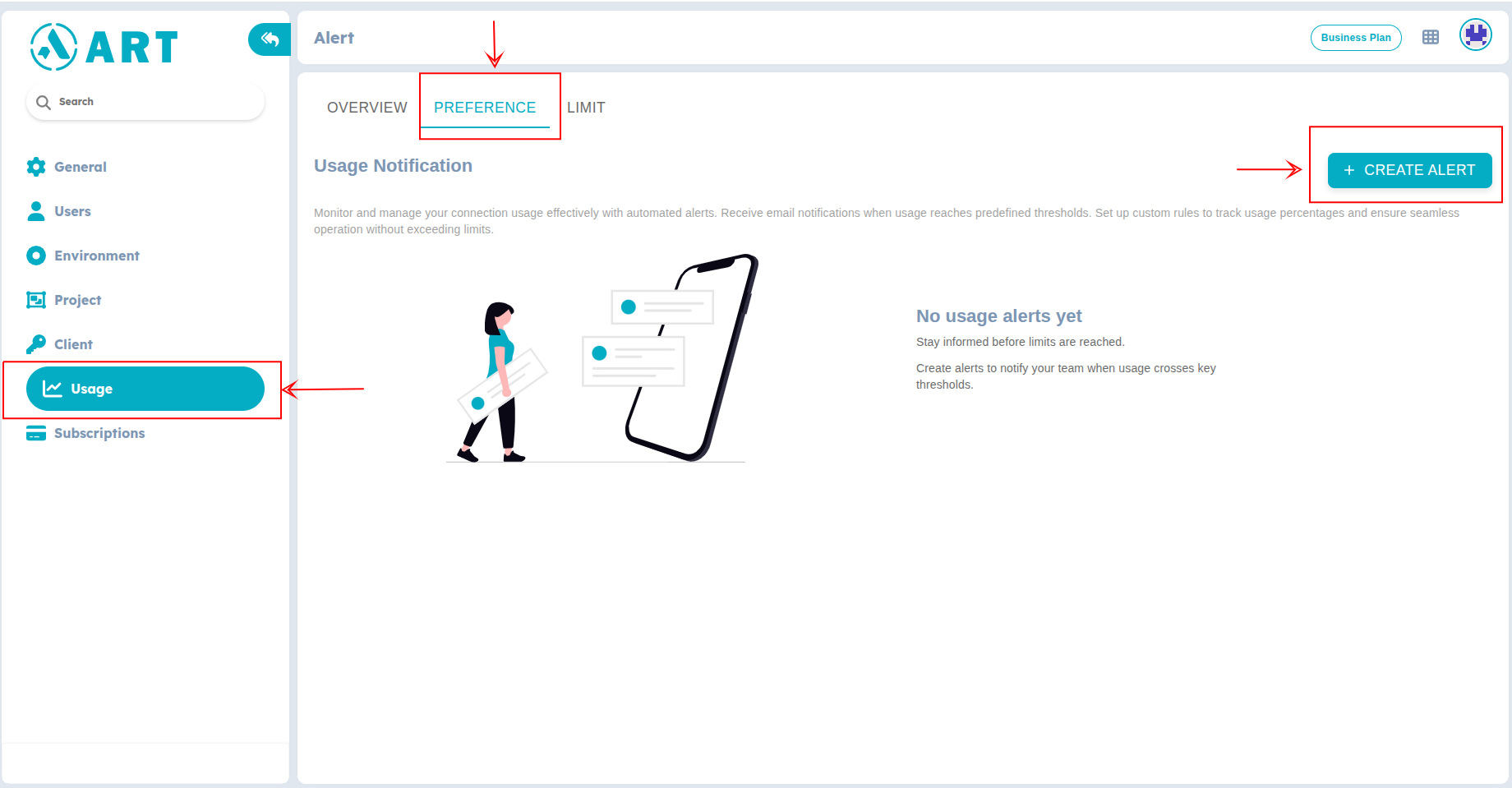
Figure 2: Usage creation
- This opens a form where you can:
- Set the usage threshold
- Enter one or more email addresses
- Click the + icon to add email recipients who should receive notifications when the threshold is reached
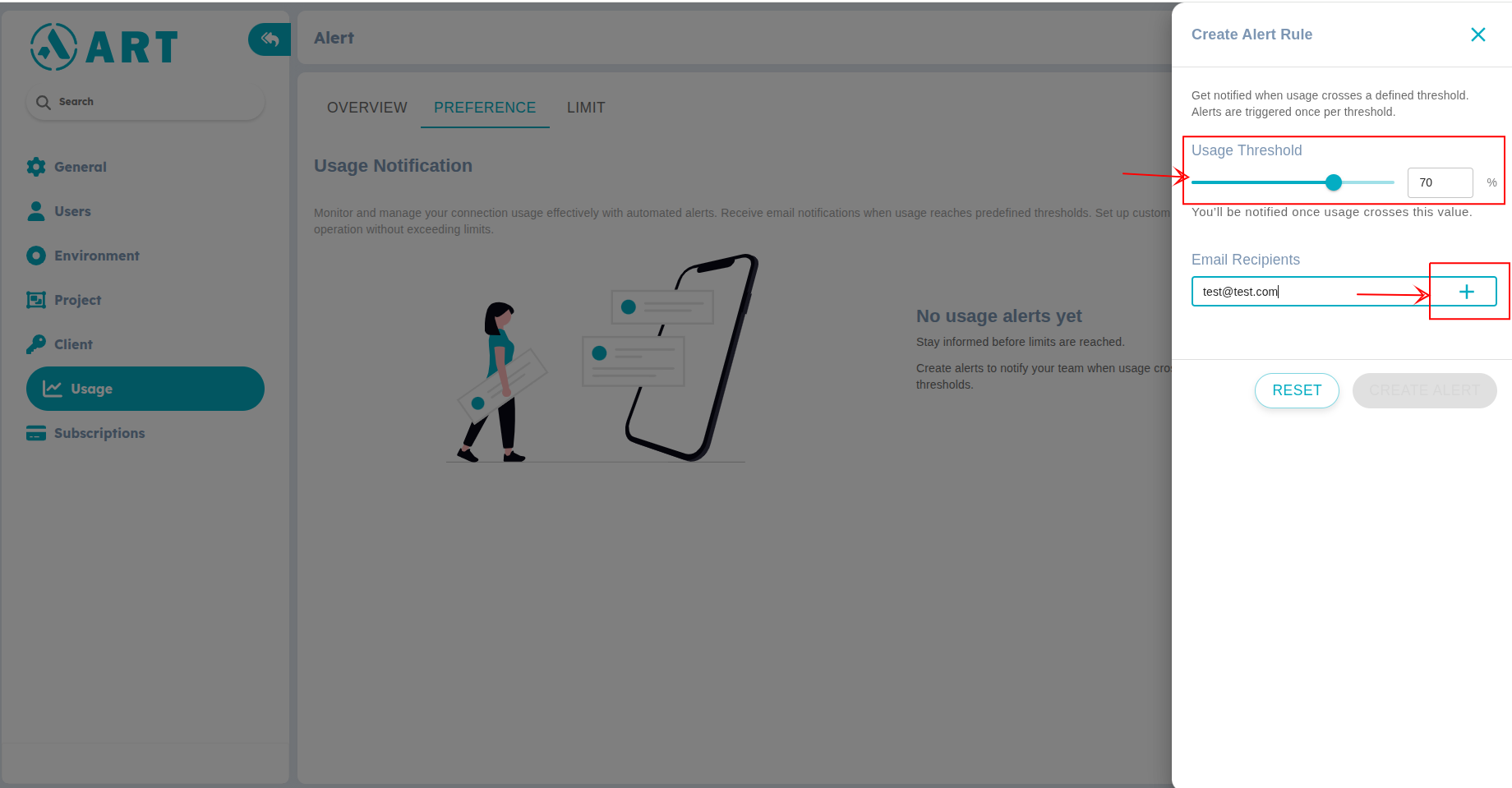
Figure 3: Fill Form
- Click Create Alert to save the usage alert.
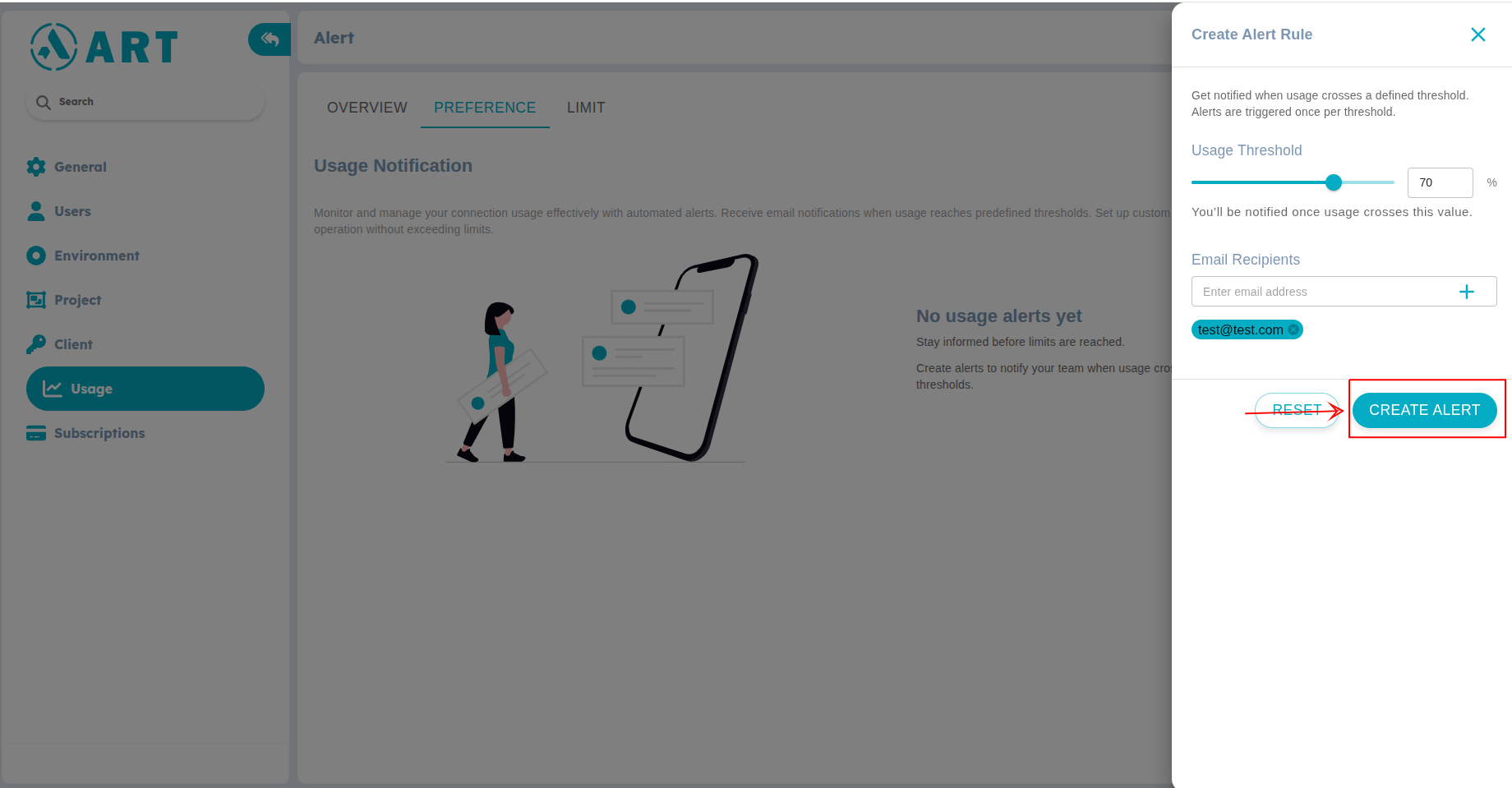
Figure 4: Create Usage Notification
- To edit or delete an existing alert, open the Action menu and select the required option.
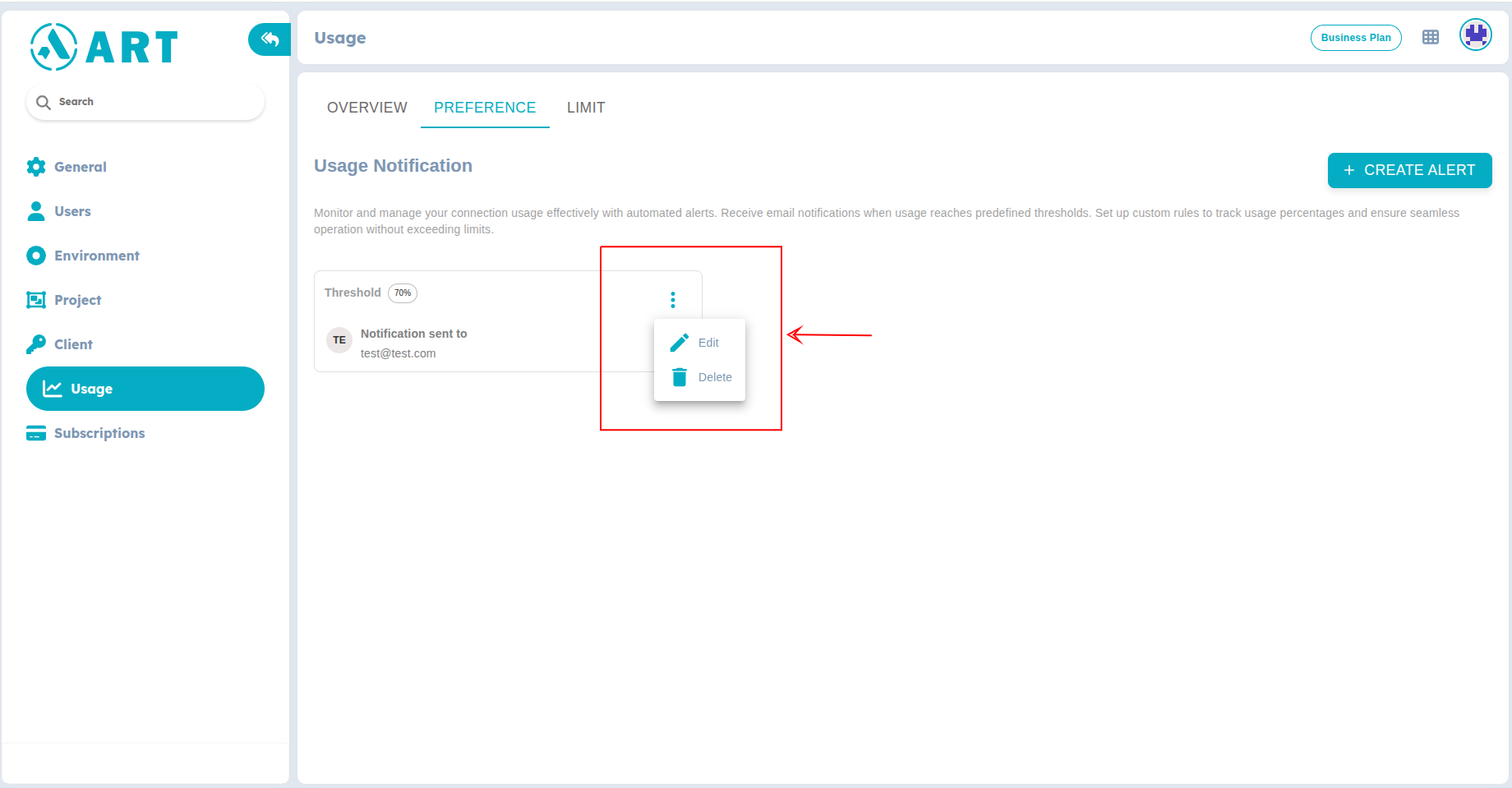
Figure 5: Edit or Delete
Shared Object Limits
Shared Object limits apply to realtime synchronization operations pushed through WebSocket inside Shared Object channels.
Each coordinate update or Shared Object state mutation pushed into the realtime pipeline counts as one operation.
Operations Per Day
Operations per day is the total number of Shared Object synchronization operations pushed through WebSocket within a 24-hour window.
In Shared Object channels, cursor movement is calculated as coordinate updates. Each coordinate change pushed into the WebSocket pipeline counts as one operation.
This applies to:
- Cursor movement
- Coordinate updates
- CRDT-based synchronization updates
- Shared Object state mutations
Monitoring Your Usage
ART provides built-in tools to help you track usage against your plan limits in real time.
The Live Data Visualization panel in the dashboard displays realtime usage metrics for connections, messages, and channels.
Usage notifications alert you by email when your account approaches or exceeds a plan limit. These alerts give you time to take action before usage affects your application.
To view your current usage and plan limits, log in to your ART account and go to:
Dashboard URL: ART Dashboard
To discuss custom requirements or higher limits, contact the ART team at: info@aiotrix.com
Use these practices to stay within your plan limits and keep realtime performance stable:
- Close WebSocket connections when users leave a page, tab, or session.
- Avoid keeping idle connections open longer than necessary.
- Use targeted channels when only specific users need a message.
- Use broadcast channels when many users need the same update and presence tracking is not required.
- Avoid sending large payloads through realtime messages; store large data separately and send a reference instead.
- Debounce high-frequency updates such as cursor movement, typing indicators, drag events, and collaborative editing changes.
- Monitor usage regularly from the dashboard, especially before launches, campaigns, or high-traffic events.
Quick Reference
| Limit Area | What It Controls | Scope |
|---|---|---|
| Concurrent connections | Number of active WebSocket sessions at the same time | Workspace |
| Connection minutes | Total active WebSocket connection duration | Workspace |
| Messages per second | Realtime message throughput | Workspace |
| Messages per day | Total daily message volume | Workspace |
| Message size | Maximum payload size allowed per message | Single message |
| Presence members | Number of present users within a single channel | Channel |
| Shared Object operations | Realtime synchronization operations | Workspace / Shared Object usage |